Connecting sources
One article per source: what it adds, how to add it, and every way it can go sideways.
Nothing matches that. Email us and a human answers.
How sources work
Which apps and signals does it cover?
Thirteen sources feed the brief today: iMessage & SMS, WhatsApp, Instagram (who they follow, plus optional DMs), Discord direct messages, web browsing across Safari and Chrome, YouTube views, Google searches, questions asked of Google Gemini, music from Apple Music, Spotify, and YouTube Music, Roblox sessions played on this Mac, Screen Time, sleep & activity from their iPhone or iPad, and who they call on the phone and FaceTime (Video or Audio), all fused into the Daily Brief & Pulse. Every source is held to the same rule: read locally, summarized locally, uploaded nowhere. The “what feeds the brief” section above shows what each adds.
I got a “reconnect” email
One of the signed-in sources (Instagram, Spotify, or the Google account) aged out, which they all eventually do. The email names which one and where to fix it; in the app it’s the tile with the amber “Reconnect” in Settings → Sources. You sign in again, it takes a few seconds, and the password never leaves your Mac. Your child’s other sources are unaffected in the meantime, and we send at most one reminder before leaving it to the banner in the brief.
Voice notes and photos in messages: what happens to them
When a conversation includes a photo, Porchlight describes what it appears to show; when it includes a voice note, Porchlight listens on this Mac and folds what was said into that conversation’s summary, the same way it reads a text. The recording is never kept and never leaves your Mac. Phone and FaceTime calls are different and stay different: never recorded, never transcribed, only who was called and for how long.
Chrome browsing isn’t in the brief
Safari is read on your Mac and always appears; Chrome reaches the brief through your child’s Google account, so it only shows for the account their Chrome is actually signed into. The usual cause is that Chrome is signed into a different Google account than the one you connected, such as a school or work account, for instance. Sign Chrome into the same account you connected in Settings → “Watching & searching,” with Chrome history kept on in that account’s Google activity, and it will appear in the next brief. Some managed school accounts don’t record Chrome history at all; those can’t be included, and Safari coverage is unaffected either way.
Every source
Messages — the foundation, and what to check if it goes quiet
Messages is the one source every brief is built on: your child’s conversations, summarized in plain language with the safety net always on. It’s on from setup and can’t be switched off — that’s the deal the Family Agreement describes.
There’s nothing to add: setup asked for Full Disk Access once, and that was the whole job. The tile in Settings → Sources reads ON · This Mac.

The brief went quiet after a macOS update. macOS updates sometimes re-lock Full Disk Access. Porchlight notices and nudges you; the fix is the same two switches from setup — the “two permission switches” article below walks it through by hand.
My child mostly texts from their phone. That’s fine. Messages in iCloud mirrors their conversations to this Mac on its own. If days ever look thinner than you know they were, check the child’s login: Messages → Settings → iMessage → “Enable Messages in iCloud”.
It’s installed under the wrong macOS login. Messages history is per-user, so Porchlight lives in the child’s macOS account — not yours. If setup happened in the wrong place, “Which Mac should I install it on?” above covers the move.
Photos and voice notes. Described and listened to on this Mac, folded into the summary, never kept and never uploaded — the article below has the full picture.
Porchlight can’t send a conversation anywhere — the reading happens on this Mac and only the day’s summary leaves it, to you.
Screen Time — an hour of setup nothing, then the day’s shape
Screen Time adds how the day was spent — which apps, how long, and when — from every device your child uses, counted by Apple.
Add it: Settings → Sources → Screen Time → switch it on. macOS asks for one permission the first time; approve it and the tile reads ON · This Mac.

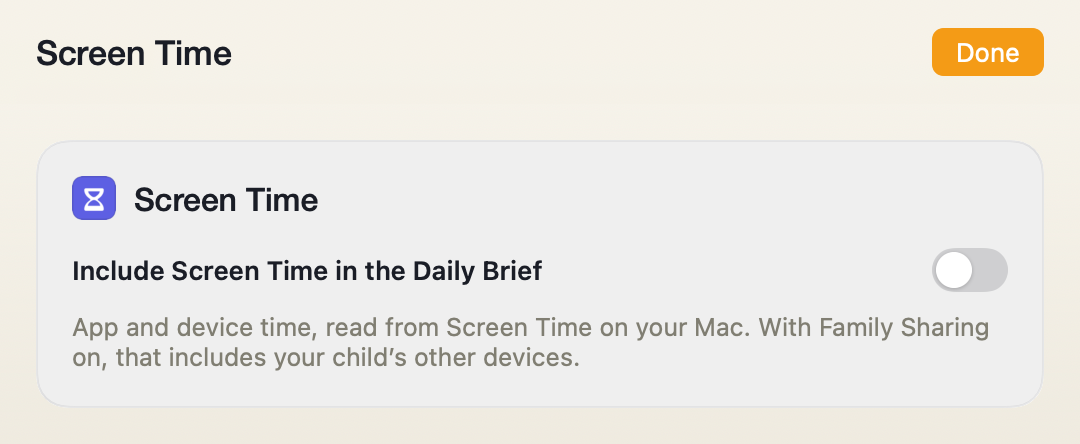
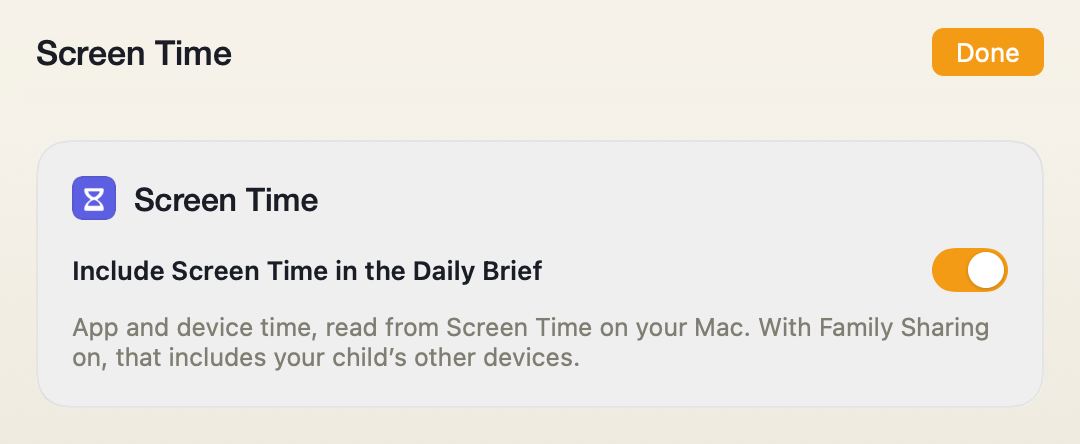
Screen Time off: the switch waits.
The section is empty though the switch is on. The child’s iPhone or iPad has to share its numbers with this Mac: on the child’s device (or via Family Sharing), Screen Time must be on and “Share Across Devices” enabled. Give it a few hours after turning that on.
It went quiet after a macOS update. Same story as Messages — the permission sometimes re-locks, Porchlight nudges, and re-granting fixes it.
The numbers don’t match the iPhone’s own Screen Time screen. Apple settles cross-device totals on its own schedule, sometimes a day behind. The brief reads what Apple has finished counting.
Porchlight reads the totals Apple already keeps — app names and minutes, never what happened inside the apps.
Web Browsing — Safari and Chrome, and the honest limits
Web Browsing adds where their attention went on the web — sites and themes from Safari and Chrome on this Mac, framed as interests, never a raw click log in your inbox.
Add it: Settings → Sources → Web Browsing → on. No sign-in; it reads locally. The tile reads ON · This Mac.

Chrome is missing while Safari shows. Chrome browsing is read from the child’s Chrome profile on this Mac. If the family shares Chrome with several profiles, the child has to actually browse in theirs.
Neither browser shows. Almost always the Full Disk Access switch — the permission article below fixes it in a minute.
Private windows never appear — by design. Incognito and Private Browsing don’t leave history, so no tool can read them. A week that suddenly goes all-private is itself worth a gentle conversation, and that’s exactly the kind of shift the brief will name.
Arc, Firefox, Brave. Not read today. The brief never counts what it can’t see, so those stay out of the picture rather than pretending.
Read on this Mac; the brief carries themes and named sites, never a URL-by-URL trail.
YouTube, Google Search & Gemini — one sign-in, and every way it can look empty
One Google connection lights up three things: what they watched on YouTube, what they searched, and — only if you opt in — the questions they asked Google’s Gemini. It also carries YouTube Music if you turn that source on.
Add it: Settings → Sources → the YouTube, Google Search & Gemini tile → Connect. A Google sign-in window opens — sign in with your child’s Google account (not yours), finish any two-step verification inside that window. When the green banner appears you are connected — and the window then stays open on Google’s own activity settings: Porchlight reads best with “Web & App Activity” turned on, and this is the page to check it. Close the window when you are done. The tile reads CONNECTED · Google Account.

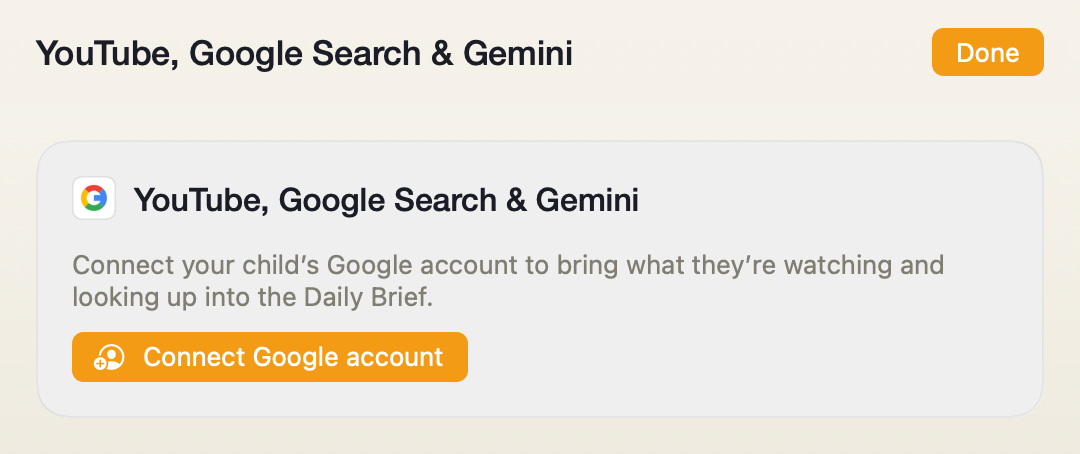
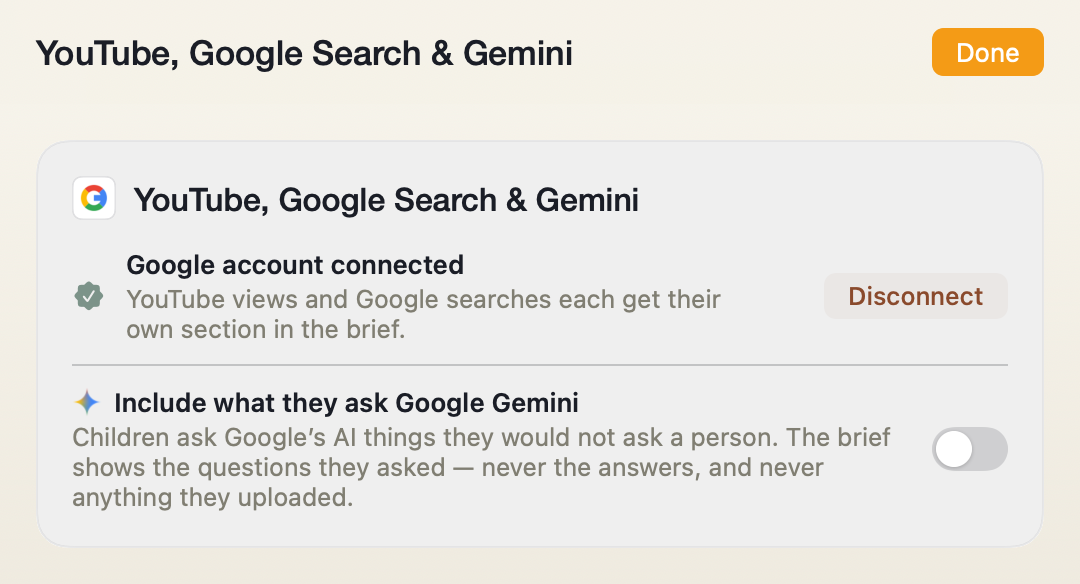
Click Connect and sign in as your child — two-step included — in the window that opens.
You connected the wrong account. The classic slip: the window remembered your Google. If the YouTube section reads like your evening instead of your child’s, Disconnect, then Connect again and sign in as the child.
Connected, but everything reads zero. Google itself may not be recording: the child’s account needs “Web & App Activity” on at myactivity.google.com. Porchlight reads what Google keeps — if Google keeps nothing, there’s nothing to read.
Searches show but Gemini stays empty. Gemini is its own switch inside the tile (it’s the most personal source, so connecting Google is never read as consent for it) — and Google also keeps a separate “Gemini Apps Activity” control that must be on.
The tile says RECONNECT. Google sign-ins age out like any browser’s. You also get one short email. Sign in again; everything resumes, nothing was lost.
Your child is under 13 or supervised with Family Link. Google often doesn’t record activity for supervised accounts. If their MyActivity page is empty, that’s Google’s setting, and the brief can only mirror it.
Quiet day, or broken? Porchlight tells them apart on its own now: a dead sign-in shows RECONNECT, a Google-side page problem triggers a “needs attention” note, and a genuinely quiet day simply reads quiet.
The sign-in lives on this Mac, held by the system — Porchlight never sees the password, and the brief shows subjects and titles, never full histories.
YouTube Music — rides the Google connection
YouTube Music folds their listening into the Music section beside Apple Music and Spotify — the mood, themes, and top artists of the day, never a tracklist.
Add it: connect Google first (the switch stays locked until then, and says so), then Settings → Sources → YouTube Music → on. The tile reads CONNECTED · Google Account.

Plays show under YouTube instead of Music. With the source off, music videos count as YouTube views. Turn it on and listening routes to the Music section automatically.
Same Google connection, same rules: read on this Mac, themes over tracklists.
Spotify — the sign-in that has to happen in Porchlight’s window
Spotify adds listening from every device on the account — the iPad in their room included — folded into the Music section as mood and artists.
Add it: Settings → Sources → Spotify → Connect. Porchlight opens its own sign-in window — sign in there with the account your child uses. If a code arrives by email, you can move this window to the background, fetch the code from Mail, and come back. Green banner, window closes, tile reads CONNECTED · Spotify Account.

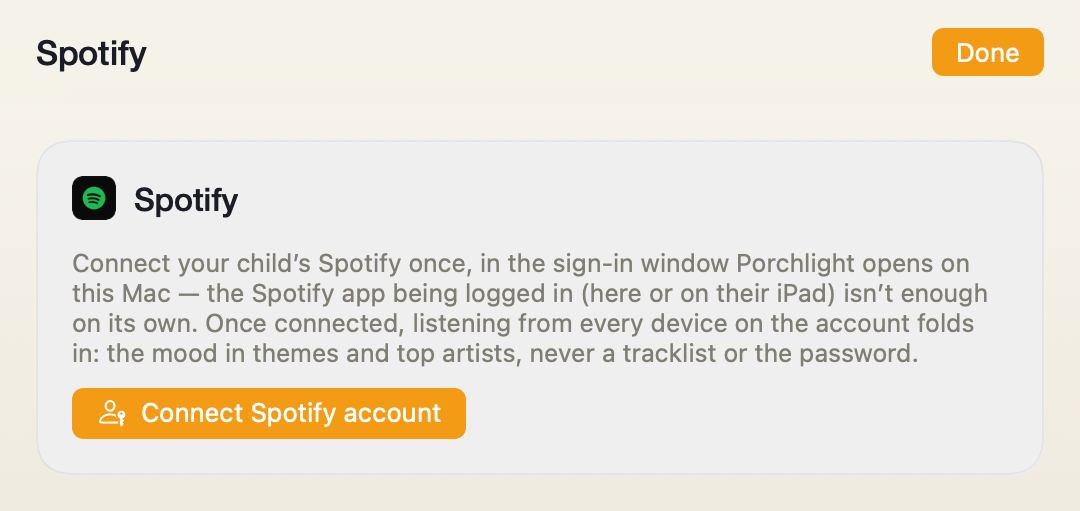
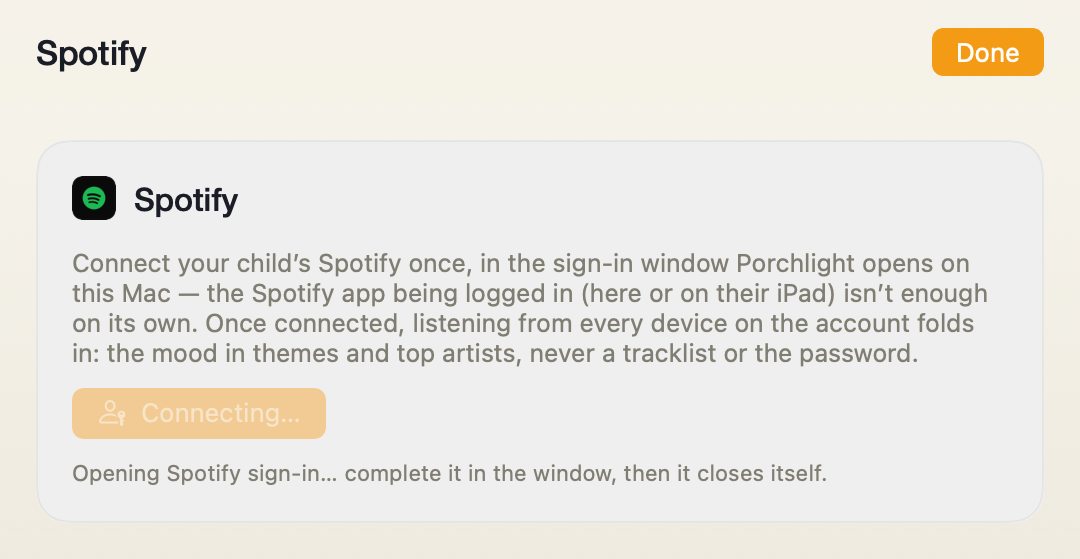
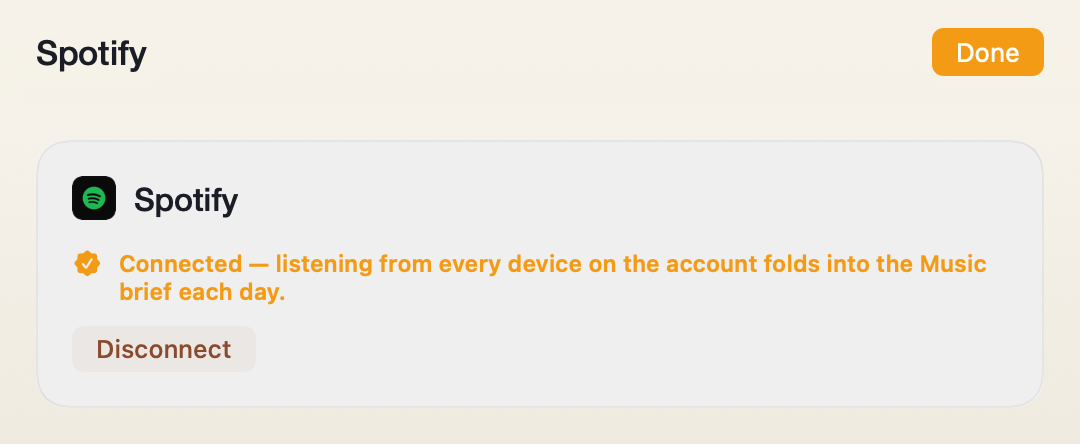
Click Connect on the Spotify screen.
The number-one misconception: logging into the Spotify app does nothing. The app on this Mac, the iPad, anywhere — being signed in there doesn’t connect anything. Porchlight’s own window is the connection; one sign-in there covers the whole account.
Their Spotify signs in with “Continue with Google” or Apple. Use that same button inside Porchlight’s window and finish the whole flow there.
You’re on a family plan. Connect the child’s member account, not the plan owner’s — each member’s listening is their own.
Wrong account connected. Disconnect, Connect again, sign in as the child.
Some listening never shows. Spotify’s “Private Session” tells Spotify itself not to record those plays — so they don’t exist for anyone to read. Worth knowing, honestly stated.
The tile says RECONNECT. Sign-ins age out; one short email tells you. Sign in again and it resumes.
The sign-in is held by this Mac’s system storage; Porchlight never sees the password, and only themes and artists reach the brief.
Apple Music — one permission, then it just reads
Apple Music adds what they play in the Music app on this Mac — the taste picture: heavy rotation, moods, new obsessions.
Add it: Settings → Sources → Apple Music → on. macOS asks once for the “Media & Apple Music” permission; approve it. The tile reads ON · This Mac.

Listening on their iPhone shows less detail than listening here. Play-by-play freshness comes from this Mac’s Music app; other devices arrive with a broader brush. The taste picture stays accurate either way.
The section is quiet. If the child mostly streams on Spotify or YouTube Music, connect those — Music blends all three.
Read locally from the Music library this Mac already keeps.
Instagram — connect it, switch accounts, and every snag we know
Instagram adds the interests behind who your child follows — grouped by theme — and, each behind its own switch, the gist of their DMs and what the feed is pushing at them.
Add it: Settings → Sources → Instagram → Connect Instagram account. Sign in as your child in the window; it closes itself once the sign-in lands. Already signed in from before? It connects instantly — often with no window at all. The tile reads CONNECTED · Instagram Account.

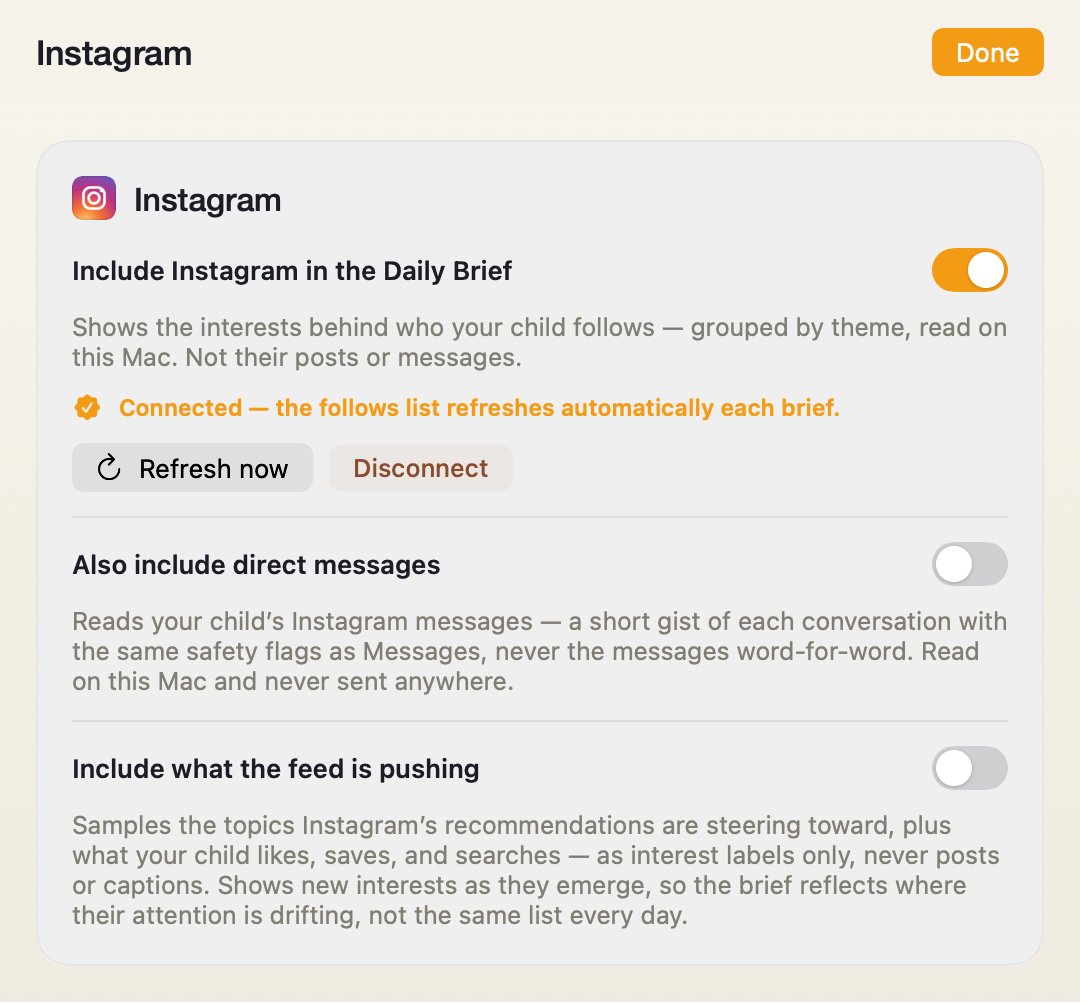
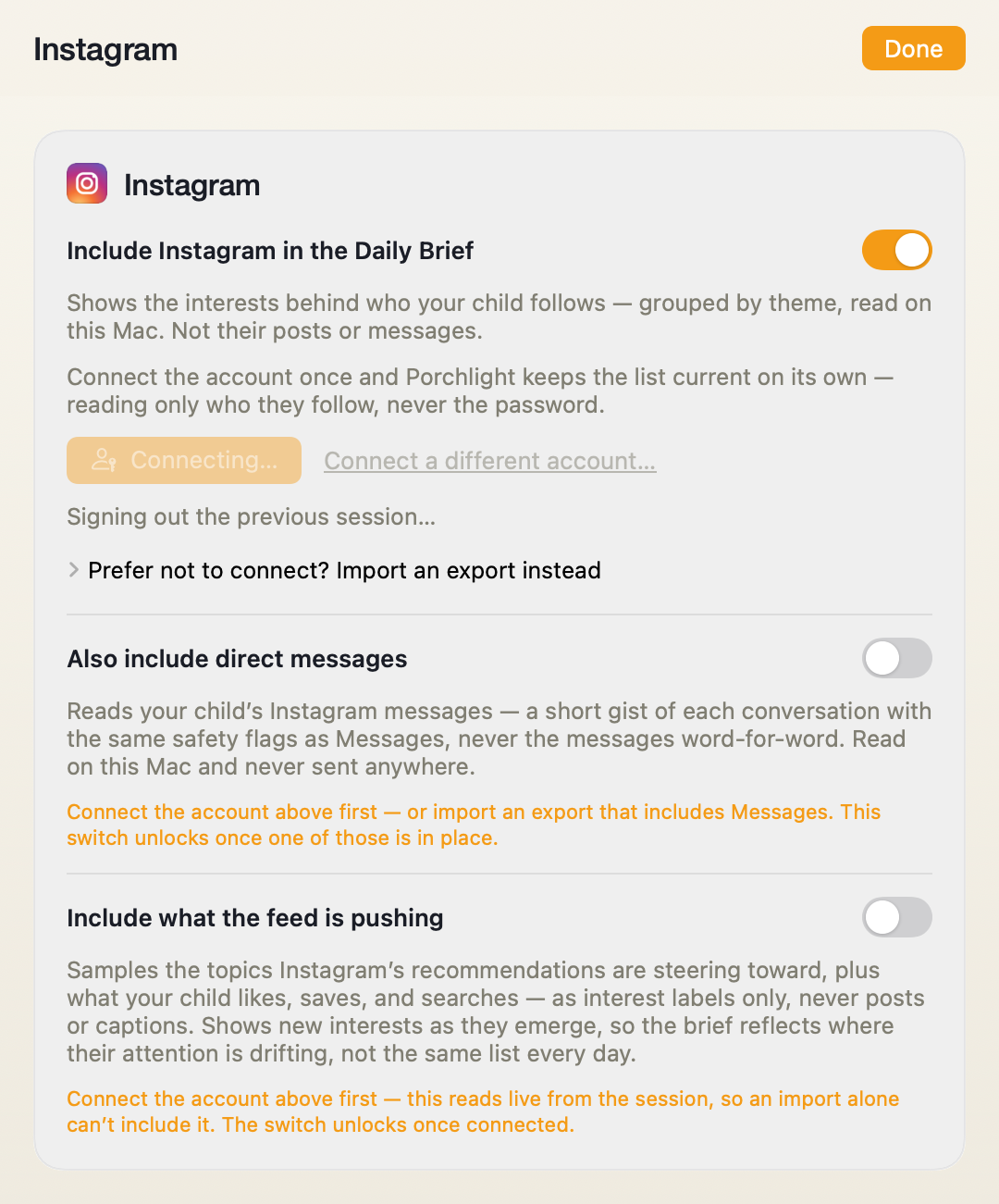
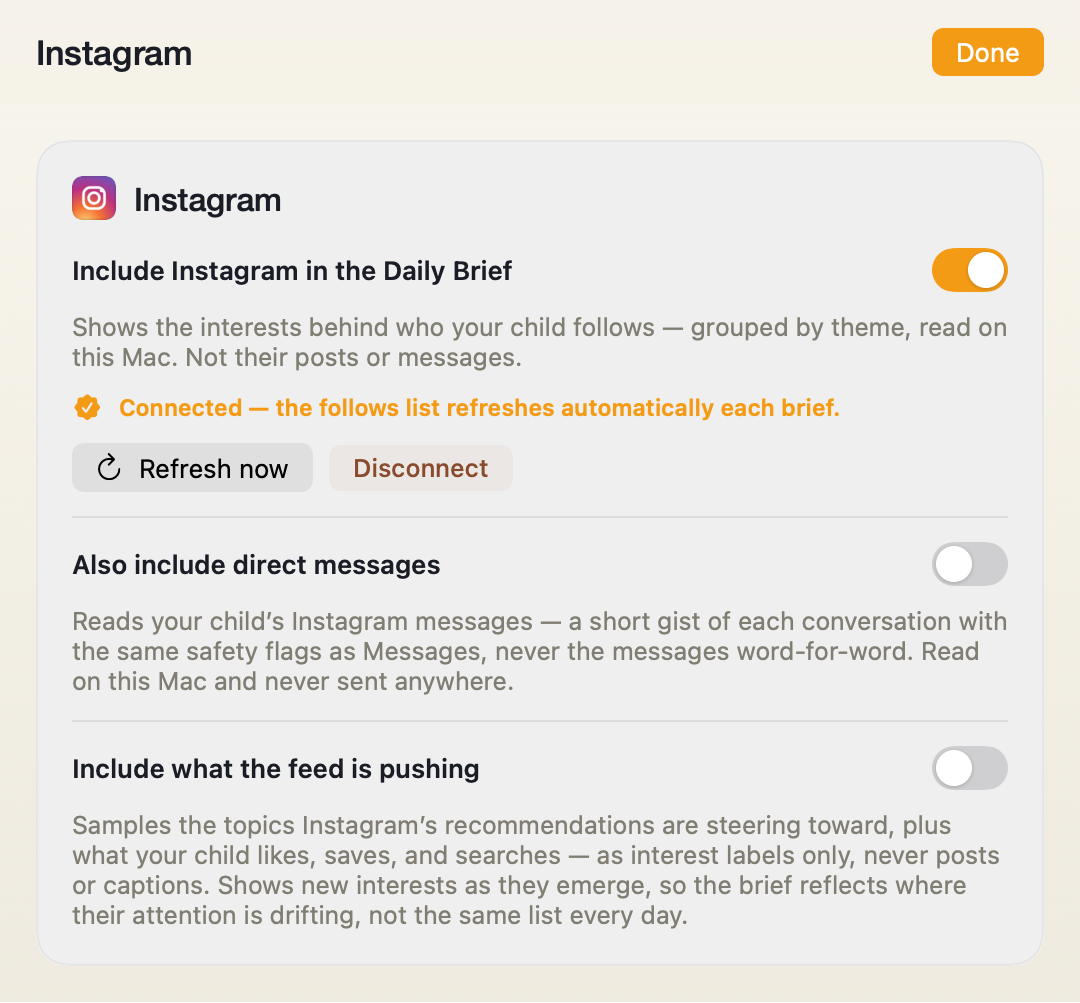
Connected to one account — but you need a different one.
You need a different account than the one that connected. The window reuses any session it already holds and closes on sight of it — too fast to sign out inside. Use Connect a different account… next to the Connect button: it signs the old session out first, then opens a fresh sign-in.
Instagram asks to verify. Approve it on your child’s phone first, then connect here.
The DM and feed switches are greyed. They unlock once the account is connected — DMs also unlock via an imported export that includes Messages. Each says so right under the switch.
The tile says RECONNECT. Instagram sign-ins age out; one email tells you. Sign in again and follows, DMs, and interests resume.
A “needs attention” note about Instagram. Instagram changed their site and Porchlight paused rather than guess. Nothing on your end; an update usually follows within days.
Prefer no live sign-in at all? The tile accepts Instagram’s own data export instead — with the honest tradeoff that follows refresh only when you import a fresh one.
The session lives on this Mac; the brief carries themes and gists, never their posts and never messages word-for-word.
WhatsApp — what it needs, and the two ways it stops
WhatsApp adds those conversations to the same brief and safety net as Messages.
It needs one thing: the WhatsApp Desktop app on this Mac, signed in as your child (from their phone: WhatsApp → Settings → Linked Devices → Link a Device). Then Settings → Sources → WhatsApp → on. The tile reads ON · This Mac.

It went quiet. Linked devices drop when the phone stays offline too long, or after WhatsApp signs the desktop out. Relink from the child’s phone — same Linked Devices screen — and the next brief picks it back up.
WhatsApp shipped a big update and the source paused. When WhatsApp changes how it stores things, Porchlight pauses that source and tells you rather than guessing at your child’s messages. An update follows.
Read on this Mac from the desktop app’s own data — nothing to sign into inside Porchlight, no password, nothing uploaded.
Phone & FaceTime — who and how long, never a word
This adds the shape of their calls — who, when, how long, and late-night patterns. Never audio, never a transcript; that can’t change, by design.
Add it: Settings → Sources → Phone & FaceTime → on. It reads the call history this Mac already keeps. The tile reads ON · This Mac.

Calls from their iPhone aren’t showing. The Mac receives call history when it shares the child’s Apple ID and “Calls from iPhone” is on (FaceTime → Settings on this Mac). A day’s lag can be normal while iCloud syncs.
The section says no calls on a day you know there were. Same cause as above nearly every time — the history didn’t reach this Mac. The brief only counts what the Mac holds.
Porchlight can’t hear calls — there is no audio anywhere in this pipeline to read.
Discord — the safe, slower way in
Discord adds who they talk to and the shape of those conversations — from Discord’s own data package, on your schedule.
Deliberately, there’s no live sign-in: Discord’s rules put connected accounts at risk of being banned, and we won’t gamble your child’s account. Instead: on the child’s Discord → Settings → Privacy & Safety → Request all of my data (Messages included). Discord emails a package in a few days; download it, then Settings → Sources → Discord → import. The tile reads CONNECTED · Export File.

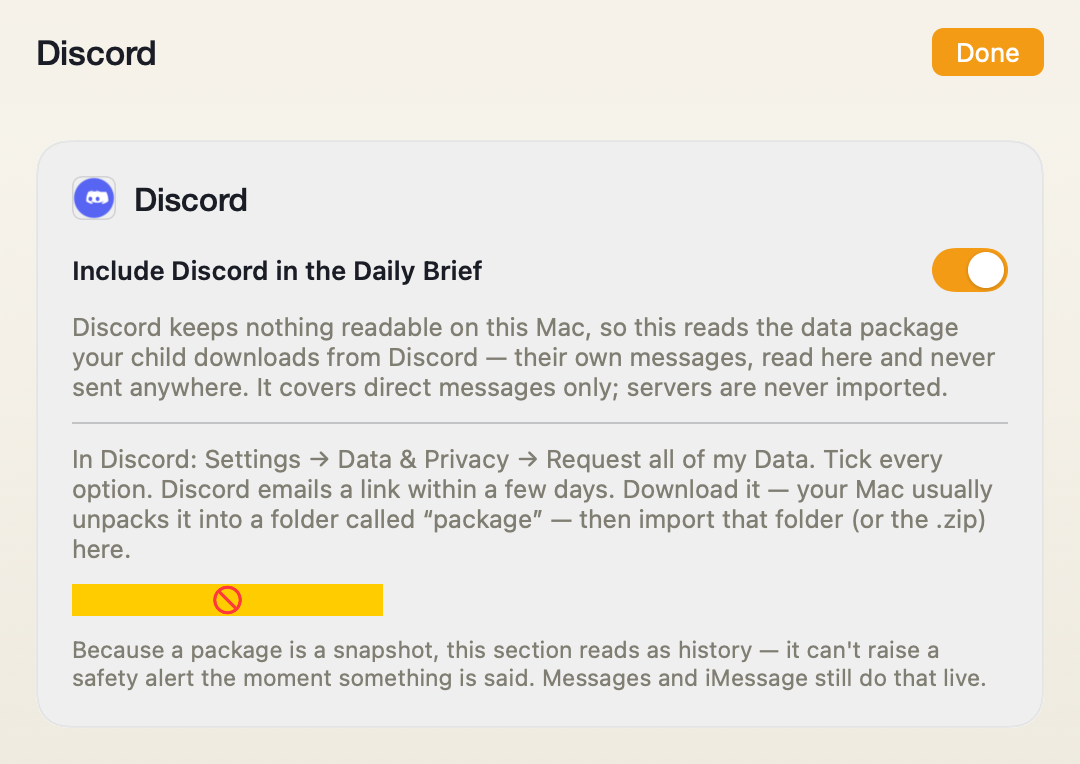
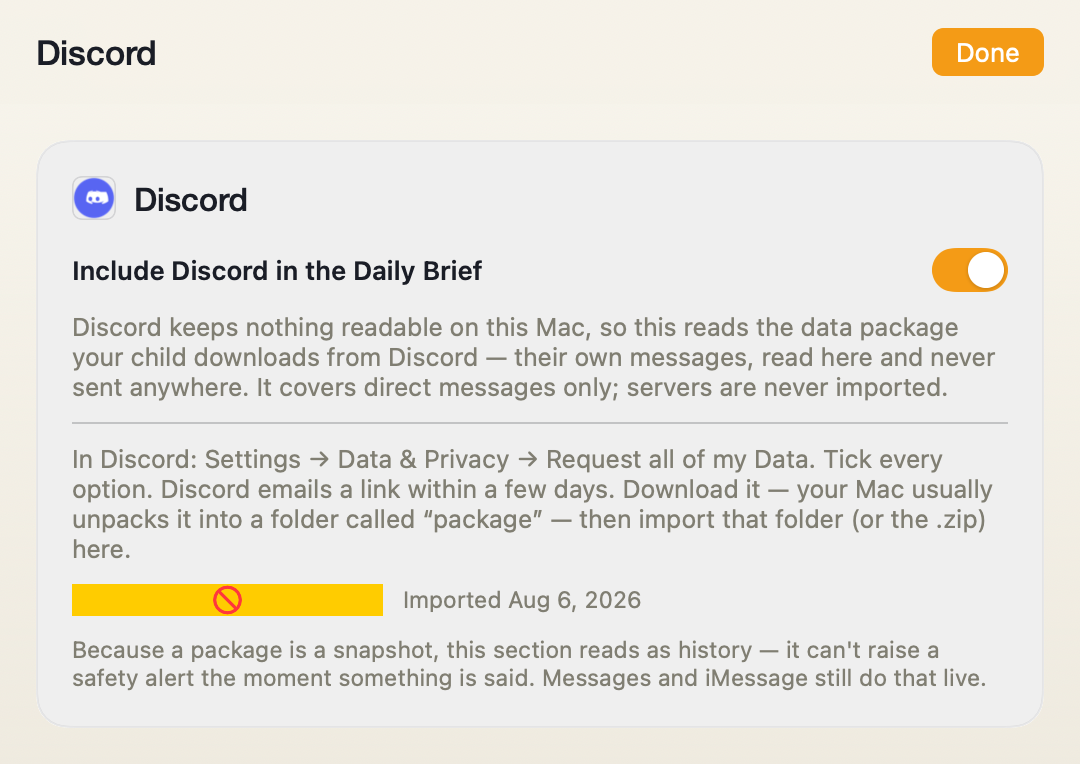
Until a data package is imported the tile says Import Needed.
The tile still says Import Needed. The switch is on but no package has been imported yet — or the one imported didn’t include Messages. Re-request with Messages ticked.
The download link expired. Discord’s links last about a month. Request a fresh package.
You requested from the wrong account. It must be the child’s Discord, requested while signed in as them.
How current is it? As current as the last package. A fresh import every few weeks keeps the picture honest — the brief will say what window it covers.
The package is read on this Mac; gists and names, never message-by-message text.
Roblox — what this Mac can see, honestly
Roblox adds what they played and when, with each experience’s maturity label — read from the Roblox app’s own logs on this Mac.
Add it: Settings → Sources → Roblox → on. No account, no sign-in. The tile reads ON · This Mac.

The honest limit, first: play on an iPad, phone, or console isn’t visible from here. If they mostly play elsewhere, this source will read quiet — Screen Time still counts the hours, and the brief won’t pretend otherwise.
Nothing shows though they played on this Mac today. The Roblox app writes a log per session; give the brief until evening. Still nothing across days — email us the logs from Settings → Support.
Local logs only: experience names, times, and labels — no chat, no account access.
Sleep & Activity — from their iPhone or iPad
Sleep & Activity adds how they’re sleeping and moving, from the Porchlight Health companion on your child’s iPhone or iPad. The tile reads ON · iPhone or iPad once it’s flowing.
Add it: Settings → Sources → Sleep & Activity shows a QR code — scan it with the child’s iPhone or iPad, install the companion, approve the Health access it asks for. The whole companion has its own section below, including every way it can go quiet.

Derived numbers only — hours slept, steps — never raw health records; the companion section below has the full accounting.
The iPhone or iPad companion (Sleep & Activity)
Does my child ever need to open the Porchlight app on their iPhone?
No. After the one-time setup (allowing Health access and linking your family, done together in about two minutes) the app works entirely in the background. The iPhone wakes it briefly when new health numbers appear, it sends the day’s summary, and that’s it. There is one exception: if the app gets swiped closed in the app switcher, the iPhone stops waking it. Opening it once turns everything back on. No re-linking, no sign-in.
The Sleep & Activity section is empty, or went quiet
In rough order of likelihood: the app was swiped closed on the iPhone (open it once and that evening’s brief has numbers again); your child doesn’t wear an Apple Watch (without one, steps and movement are all an iPhone can know. Sleep and heart numbers need a worn Watch, so their absence is expected, not broken); the Watch wasn’t worn to bed that night; the iPhone spent the day in Low Power Mode, which delays background work; or the phone was simply off or offline. None of these lose anything permanently. The section fills back in as numbers resume.
When does last night’s sleep show up?
In that evening’s brief. The Watch syncs the night’s sleep to the iPhone in the morning, the app sends the summary during the day, and the brief that lands at your digest hour carries it.
What leaves my child’s iPhone?
Only the day’s summary numbers: steps, distance, exercise minutes, resting heart rate, heart-rate variability, and sleep duration. It’s the exact list the app shows your child on its “What Porchlight sees” screen, so they can check it anytime. Those few numbers travel through our relay solely to reach your Mac for the evening brief. Raw Health records never leave the phone, and nothing else on the phone, messages included, is touched at all.
What if my child deletes the app?
The health numbers stop, and the brief’s Sleep & Activity section goes quiet. You’ll notice within a day or two. We deliberately don’t lock the app to the phone or resist deletion: Porchlight’s deal with your child is openness, and an app that can’t be removed breaks that deal. If it disappears, that’s a conversation, not a technical problem, and reinstalling takes the same two minutes as the first time.
Does it affect battery life?
Not noticeably. The app has no ongoing activity. The iPhone wakes it for a few seconds a handful of times a day to read and send a short summary.
Alpha support is answered by the people building Porchlight, usually within a day. Safety-alert delivery problems jump the queue.
Something broken? Send us the logs
One click in the app sends the status logs to support: counts and timings, never anything your child wrote. Open Porchlight → Send logs
On a Mac without Porchlight, or writing from your phone? Email us your macOS version, what you expected, and what happened instead. That's plenty to start.